What Is a MAC Address? A Simple Guide Anyone Can Understand
Introduction
Have you ever heard the term “MAC address” and wondered what it actually means? You’re not alone. Most people hear this phrase from their internet provider, IT department, or when setting up a router — and it can sound pretty technical at first.
But here’s the good news: a MAC address isn’t complicated once someone explains it clearly. Think of it as a permanent name tag that every device carries — a unique ID that helps networks recognize your phone, laptop, or tablet.
In this guide, we’ll break down exactly what a MAC address is, what it looks like, and how to find yours — no tech background needed.
What Is a MAC Address? (The Simple Definition)
A MAC address stands for Media Access Control address. It’s a unique identifier assigned to the network interface of every device — meaning your phone, laptop, smart TV, and even your printer each have one.
So what does MAC stand for beyond the abbreviation? “Media Access Control” refers to the layer in networking that handles how devices communicate on a local network. But you don’t need to memorize that — just know that a MAC address is basically your device’s hardware fingerprint.
Unlike your home address that can change when you move, a MAC address is burned into your device’s hardware at the factory. It doesn’t change when you switch Wi-Fi networks or travel to a different country.
Featured Snippet Paragraph:
A MAC address (Media Access Control address) is a unique 12-character identifier assigned to every network-connected device. It’s used to identify devices on a local network. Unlike an IP address, a MAC address is tied to the device’s physical hardware and does not change.
What Does a MAC Address Look Like?
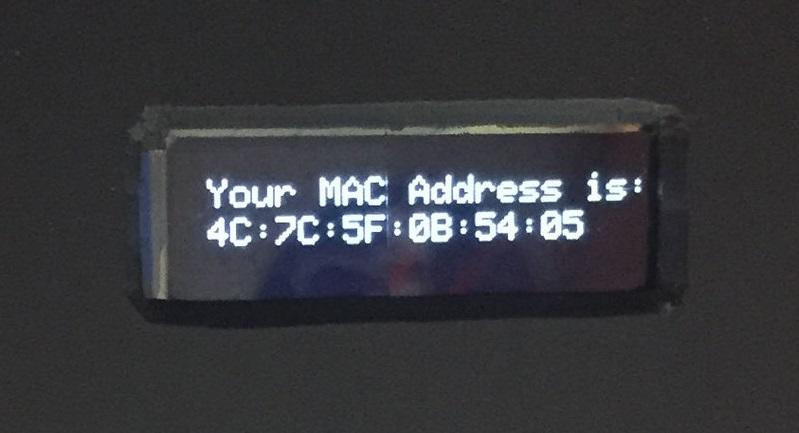
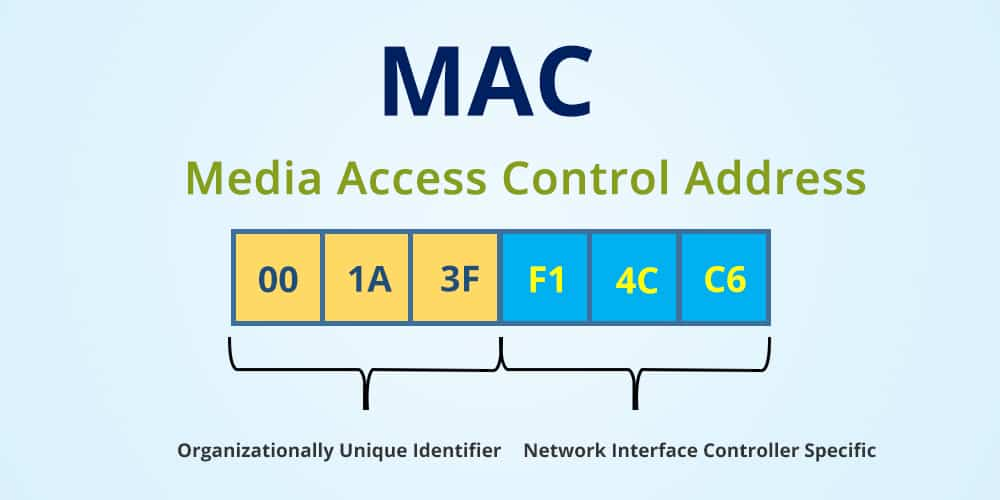
A MAC address is made up of 12 hexadecimal characters (numbers 0–9 and letters A–F), usually written in pairs separated by colons or hyphens.
Here’s a MAC address example:
00:1A:2B:3C:4D:5EOr sometimes written as:
00-1A-2B-3C-4D-5EThe first six characters (called the OUI — Organizationally Unique Identifier) identify the manufacturer. The last six characters are unique to that specific device.
So if you see a MAC address starting with 00:1A:2B, you could actually trace it back to a specific hardware maker. That’s useful for network administrators who need to find a device by its MAC address on a large network.
This format is also called a canonical address in technical networking documentation.
MAC Address vs IP Address — What’s the Difference?
A lot of people confuse MAC addresses with IP addresses. They’re both used in networking, but they serve very different purposes.
| Feature | MAC Address | IP Address |
|---|---|---|
| What it is | Hardware ID | Network ID |
| Does it change? | No (permanent) | Yes (can change) |
| Who assigns it? | Manufacturer | Router/ISP |
| Where it’s used | Local network | Internet |
| Example | 00:1A:2B:3C:4D:5E | 192.168.1.1 |
Think of it this way: your MAC address is like your national ID card — it’s fixed and tied to you. Your IP address is like a hotel room number — it changes depending on where you’re staying.
Both are needed for devices to communicate, but they work at different layers of the network.
How to Find Your MAC Address on Windows
Finding your MAC address on a Windows PC takes less than a minute. Here are two easy ways:
Method 1: Using Command Prompt
- Press Windows + R, type
cmd, and hit Enter. - In the black window that opens, type:
ipconfig /all - Press Enter.
- Look for “Physical Address” — that’s your MAC address.
Method 2: Using Settings
- Go to Settings → Network & Internet.
- Click on your Wi-Fi or Ethernet connection.
- Scroll down and look for “Physical address (MAC)”.
It’s that simple. Windows calls it the “Physical Address” — just another name for the MAC address.
How to Find Your MAC Address on a MacBook
If you use a MacBook or Mac desktop, here’s how to find the MAC address:
Using System Settings (macOS Ventura and later)
- Click the Apple menu (top-left corner).
- Go to System Settings → Network.
- Select your Wi-Fi or Ethernet connection.
- Click Details.
- Look for “Wi-Fi Address” — that’s your MAC address.
Using Terminal
- Open Terminal (search it in Spotlight).
- Type:
ifconfig en0 | grep ether - Press Enter — your MAC address will appear next to “ether.”
On a Mac, the Wi-Fi MAC address is sometimes called the Wi-Fi Address or AirPort ID depending on your macOS version.
How to Find Your MAC Address on iPhone
If someone asks for your iPhone’s MAC address, here’s exactly how to find it:
Steps to Find MAC Address on iPhone
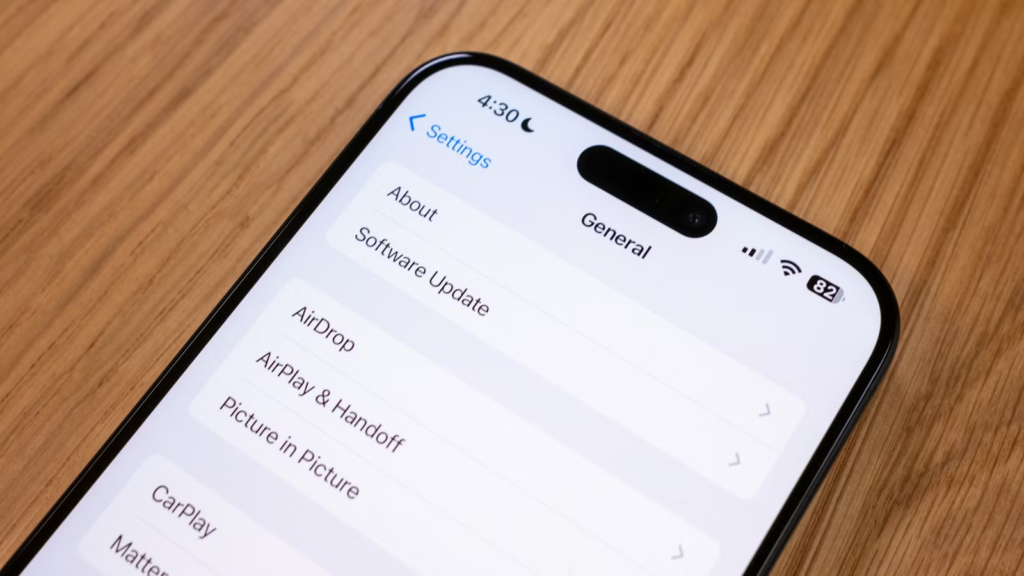
- Open the Settings app.
- Tap General.
- Tap About.
- Scroll down to find “Wi-Fi Address”.
That Wi-Fi Address is your iPhone’s MAC address. It’s a 12-character code that looks like A4:C3:F0:85:AC:2D.
Quick tip: iPhones running iOS 14 and newer use a feature called Private Wi-Fi Address by default. This means your iPhone may show a different MAC address on each Wi-Fi network to protect your privacy. If a router or network asks for your real MAC address, you can turn off Private Address for that specific network in Wi-Fi settings.
Why Does a MAC Address Matter?
You might wonder — why would anyone need to know their MAC address? Here are some real-world reasons:
- Router security: Many home routers let you create a “whitelist” of allowed MAC addresses so only your devices can connect.
- Network troubleshooting: IT teams use MAC addresses to identify which device is causing problems on a network.
- Parental controls: Some routers let you set time limits or block content based on a device’s MAC address.
- Device tracking: In public spaces, MAC addresses can be used to track movement (which is why iPhone’s private address feature was introduced).
- ISP requirements: Some internet service providers register your router’s MAC address. If you change your router, you may need to provide the new MAC address.
Can a MAC Address Be Changed?
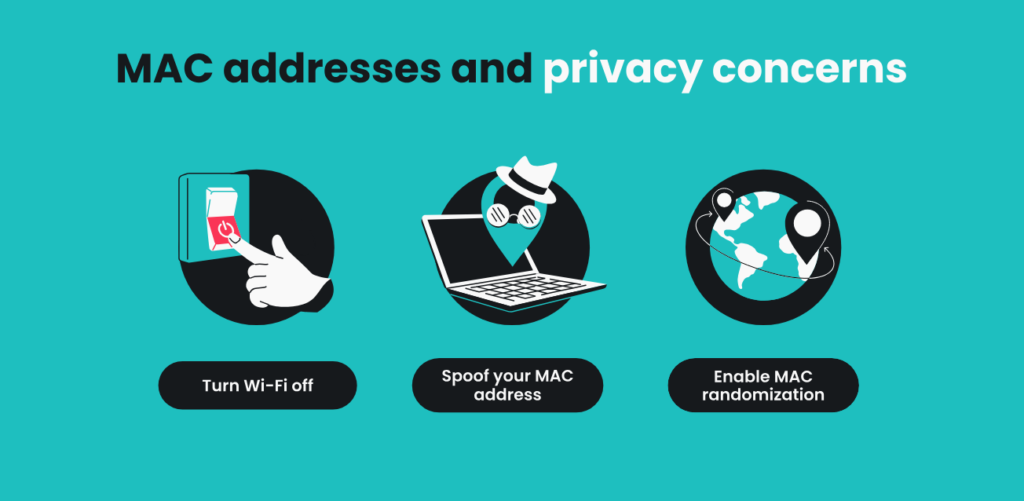
Technically, yes — a MAC address can be temporarily changed using software. This is called MAC spoofing. But the physical MAC address burned into the hardware never changes.
MAC spoofing can be done for legitimate reasons (privacy, network testing) but is sometimes misused. Most operating systems allow you to set a random or custom MAC address through network settings.
Apple’s “Private Wi-Fi Address” feature is actually a built-in form of MAC address randomization designed to protect user privacy.
How to Find a Device Name by Its MAC Address
If you’re a network admin or just curious, you can figure out what device a MAC address belongs to by using an OUI lookup tool. Websites like IEEE’s OUI database let you enter the first six characters of any MAC address to identify the manufacturer.
For example, if a MAC address starts with F8:FF:C2, the OUI lookup would tell you it’s an Apple device.
To find which specific device on your home network has a particular MAC address:
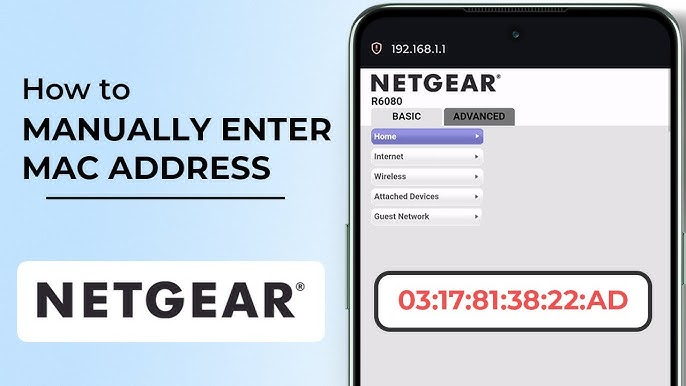
- Log into your router admin panel (usually at
192.168.1.1). - Look for a section called “Connected Devices” or “DHCP Client List”.
- Compare the MAC address shown there to your devices.
Conclusion
A MAC address is one of those things that sounds more complicated than it actually is. At its core, it’s just a permanent, unique ID that your device uses to identify itself on a network.
Whether you’re troubleshooting a Wi-Fi issue, setting up parental controls, or just curious what that string of letters and numbers means — now you know. It’s your device’s hardware fingerprint, and it’s been there since the day your device was made.
The most important things to remember:
- MAC = Media Access Control
- It’s a 12-character hardware identifier (e.g.,
00:1A:2B:3C:4D:5E) - Every device has one — phones, laptops, smart TVs
- It’s different from an IP address
- You can find it in your device settings in under a minute
Frequently Asked Questions (FAQ Schema)
Q1: What does MAC stand for in MAC address?
MAC stands for Media Access Control. It’s the part of a network that controls how devices communicate on a shared local network.
Q2: Is a MAC address the same as an IP address?
No. A MAC address is a permanent hardware ID assigned by the manufacturer. An IP address is a temporary network address assigned by your router or ISP. They serve different roles in networking.
Q3: How do I find my MAC address on my iPhone?
Go to Settings → General → About, then scroll down to “Wi-Fi Address.” That’s your iPhone’s MAC address.
Q4: Can two devices have the same MAC address?
In theory, no — MAC addresses are meant to be globally unique. In practice, MAC spoofing can create duplicates, but this is rare and usually intentional.
Q5: What does a MAC address look like?
A MAC address looks like this: 00:1A:2B:3C:4D:5E — six pairs of hexadecimal characters separated by colons or hyphens.